
Copilot Chat Training Recording 9/18/2026.
Meeting Notes
Copilot Training Purpose and Structure
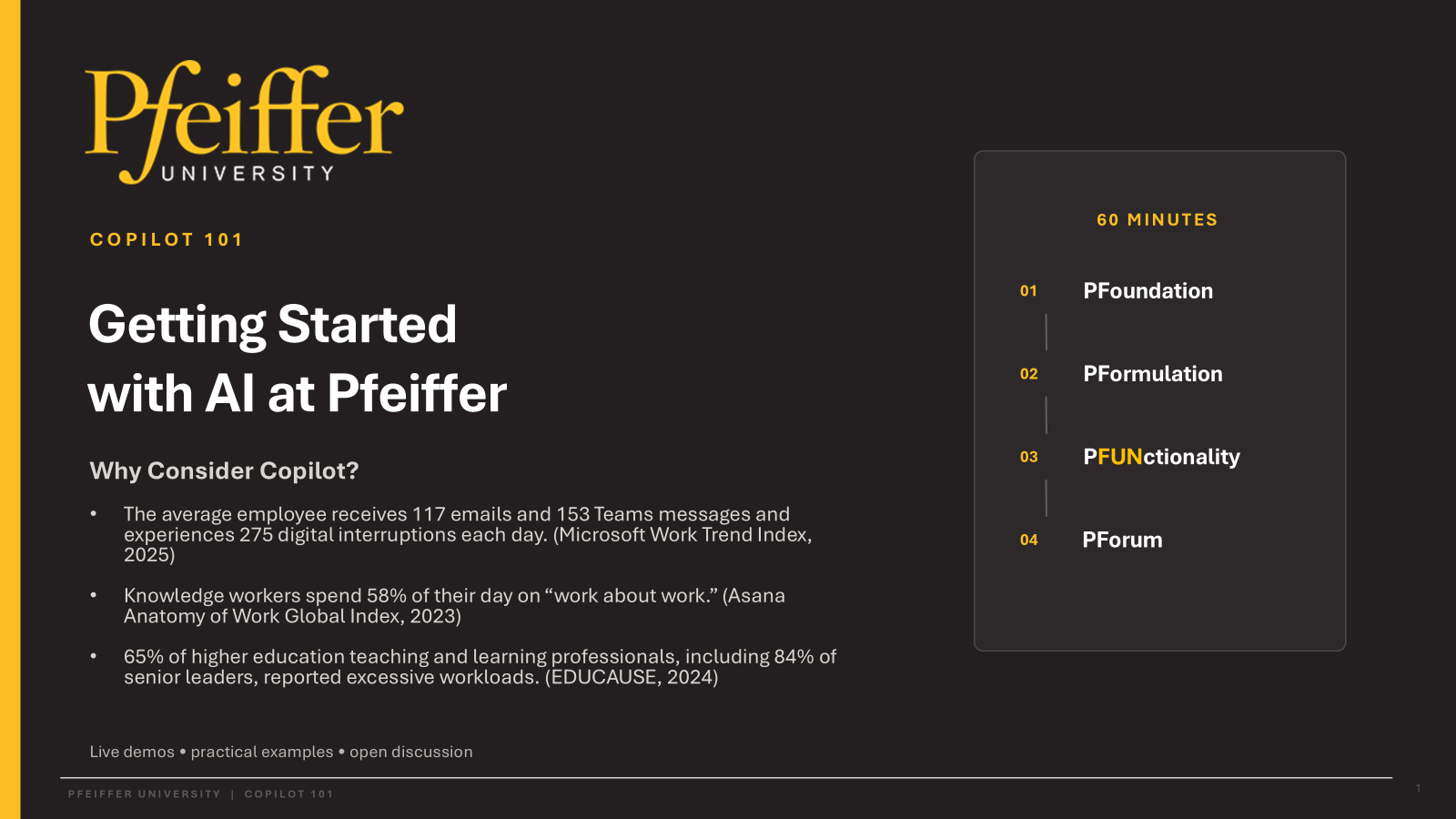
Purpose: Ryan Conte introduced Pfeiffer University’s first IT-hosted Copilot 101 training. The session was designed to help reduce administrative workload, demonstrate practical use cases, and establish an ongoing learning dialogue through demonstrations, office hours, and follow-up sessions.
Training Objectives: The customized training is intended to help employees reduce “work about work,” including planning, coordination, administrative tasks, and digital interruptions. The training emphasizes practical techniques, responsible use, and experimentation rather than treating AI as a replacement for professional judgment.
Session Format: The session was organized into four segments: Foundation, Formulation, Functionality, and Forum. Each segment was planned for approximately 15 minutes and included explanations, live demonstrations, and opportunities for questions. IT staff also monitored the chat during the session.
Workload Context: Ryan cited Microsoft and higher education workload statistics, including high volumes of email and Teams messages, frequent digital interruptions, and substantial time spent on administrative work. These figures provided context for exploring Copilot as a way to reduce friction for Pfeiffer employees.
Responsible AI Use and Information Protection
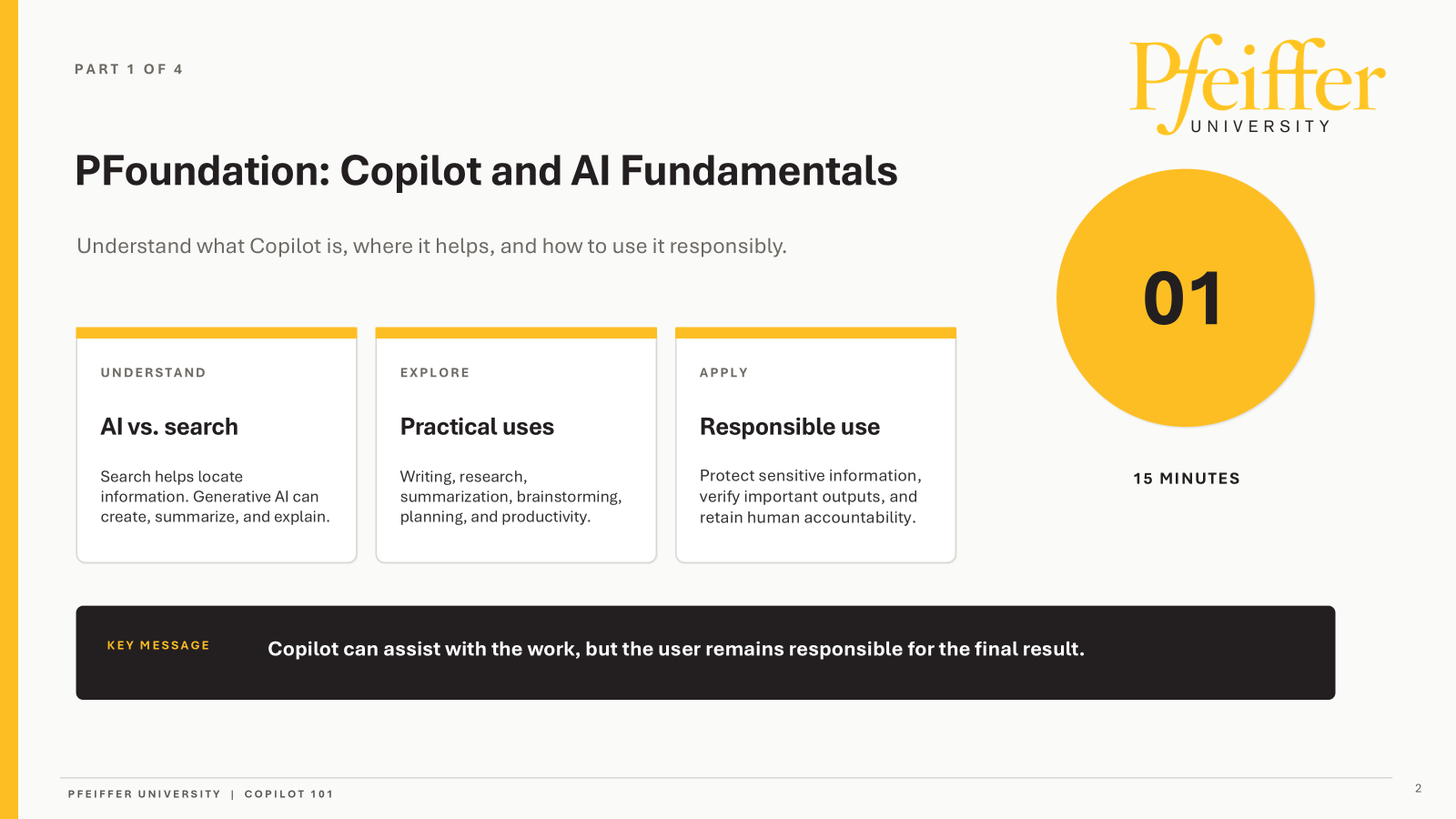
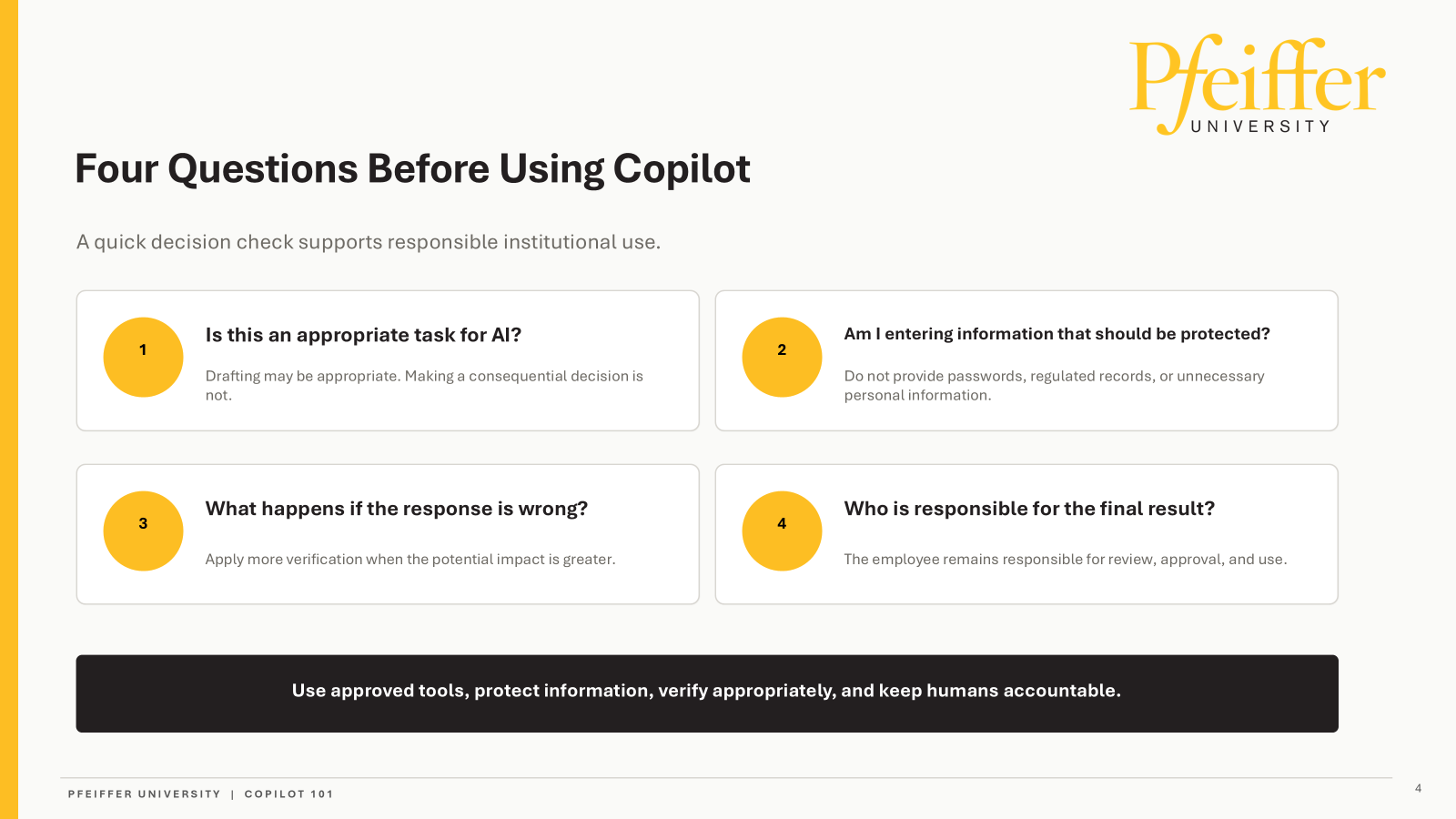
Ryan explained that Pfeiffer’s protected Copilot environment supports responsible use, but employees remain accountable for verifying outputs, selecting appropriate tasks, and protecting sensitive information.
Human Accountability: Copilot can help draft, summarize, research, brainstorm, and organize information. However, the employee remains the reviewer, approver, editor, and publisher of anything issued under their name. Users should challenge and verify outputs before relying on or distributing them.
Task Suitability: Employees should consider whether a task is appropriate for AI before using Copilot. Drafting and assistance with analysis may be appropriate, but consequential decisions should not be delegated to Copilot. The final decision remains with the employee.
Sensitive Information: Employees should not enter passwords, Social Security numbers, credit card information, or sensitive student, employee, financial, health, credential, or regulated information unless the specific use has been reviewed and approved by Pfeiffer. Information requiring additional protection should remain within the appropriate secured institutional system.
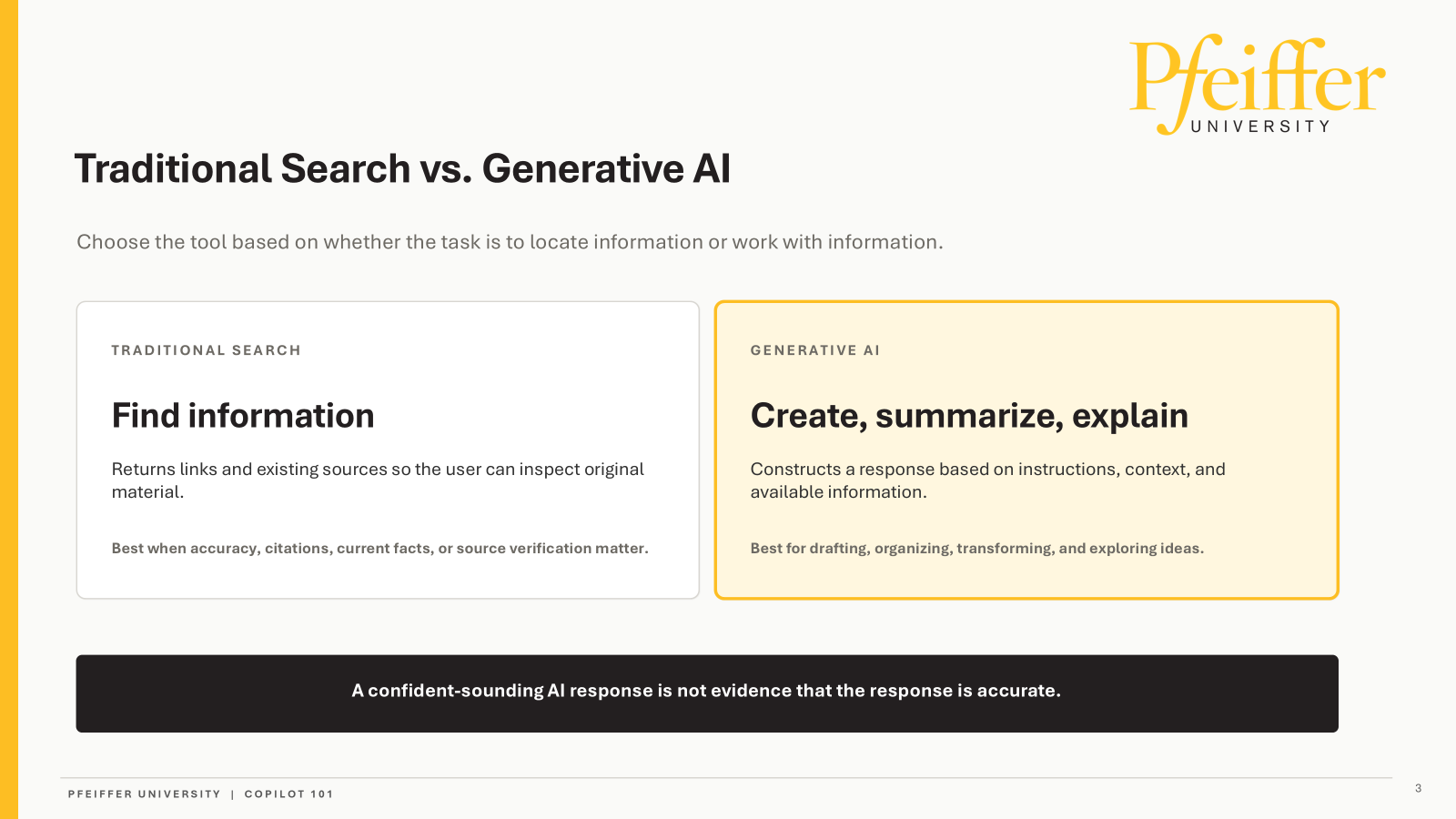
Verification Requirements: The level of verification should match the potential impact of an incorrect response. Traditional search remains important when users need current facts, citations, source inspection, or independent confirmation. A confident AI response is not evidence of accuracy.
University Guidance: Pfeiffer is working to define responsible AI in a way that reflects the university’s values, mission, and strategy. Additional institutional guidance is expected in the coming months.
Secure Copilot Access Options
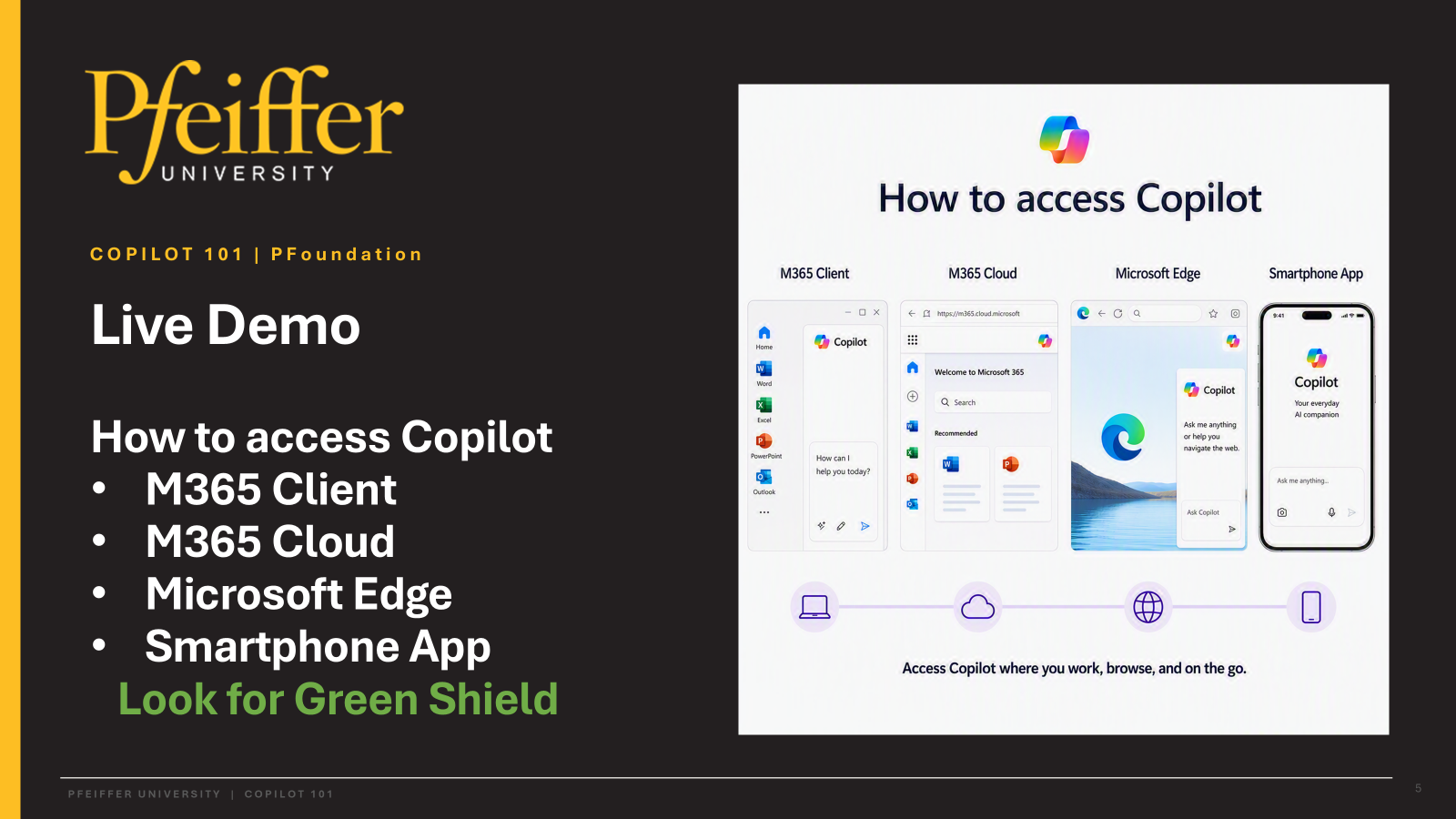
Ryan demonstrated four supported access points for Copilot and showed employees how to distinguish Pfeiffer’s protected work environment from consumer or personal AI tools.
Access Points: Employees can access Copilot through the Microsoft 365 desktop application, the Microsoft 365 website, Microsoft Edge, and the mobile app. Pfeiffer-issued computers should already have the desktop application installed, while the web version provides a similar interface.
Protection Indicator: Users should confirm that they are signed in with their Pfeiffer work account and that Enterprise Data Protection is displayed. A personal Copilot account may not include Pfeiffer’s approved institutional protections.
Browser Guidance: Ryan encouraged employees to use Microsoft Edge because Copilot is integrated into the browser and can work with an open webpage when that feature is enabled. Employees should use Pfeiffer-approved AI tools while signed in with their university accounts. Personal AI accounts do not provide Pfeiffer’s approved institutional protections.
Mobile Use: The mobile app can be installed through the download option or a provided QR code. When employees sign in with their Pfeiffer account, the application can work with Microsoft 365 files and email according to the user’s assigned access and licensing.
Effective Prompting and Conversation
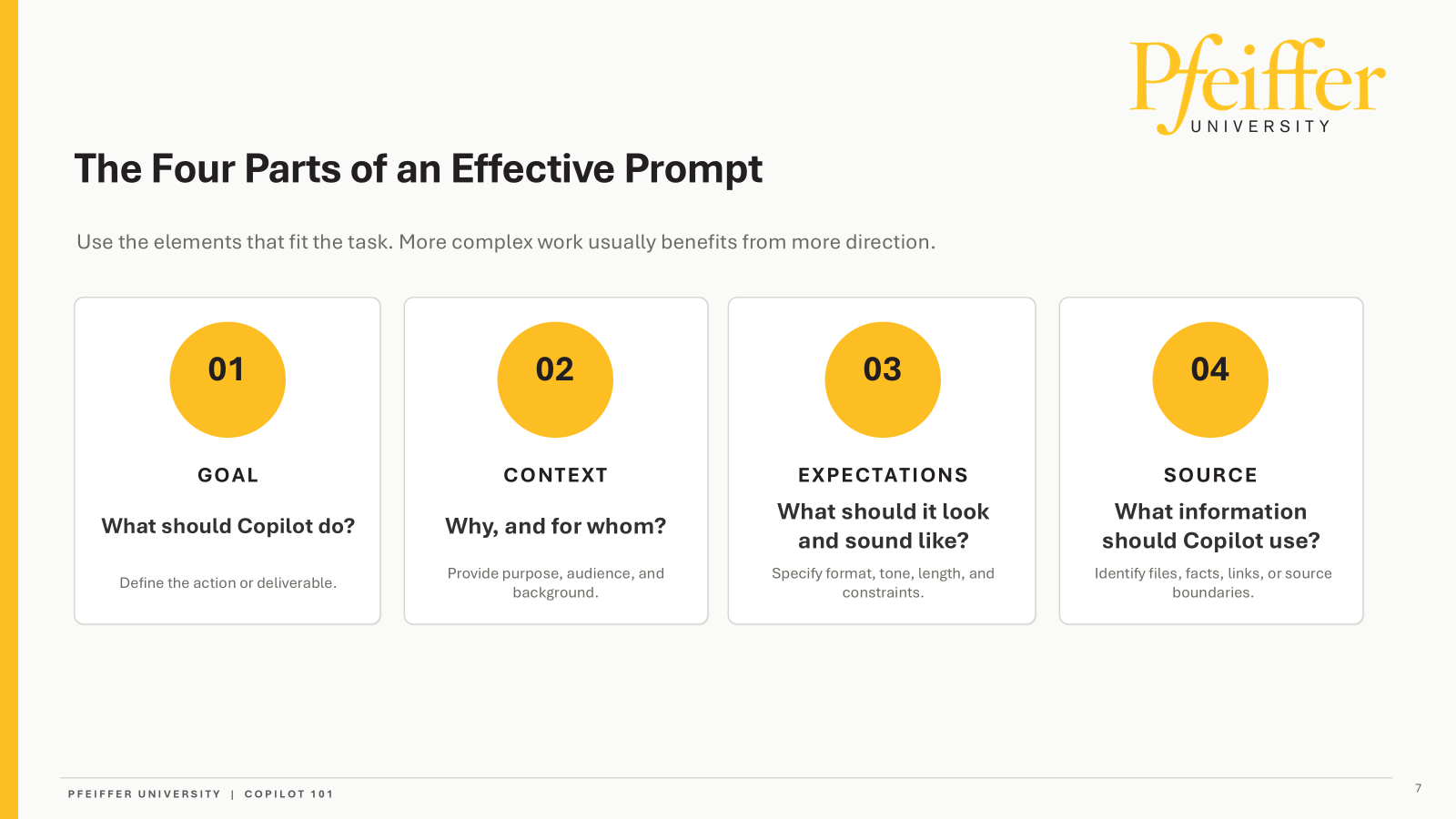
Ryan taught employees to improve Copilot results by defining the goal, providing context, specifying expectations, identifying sources, and refining responses through follow-up prompts.
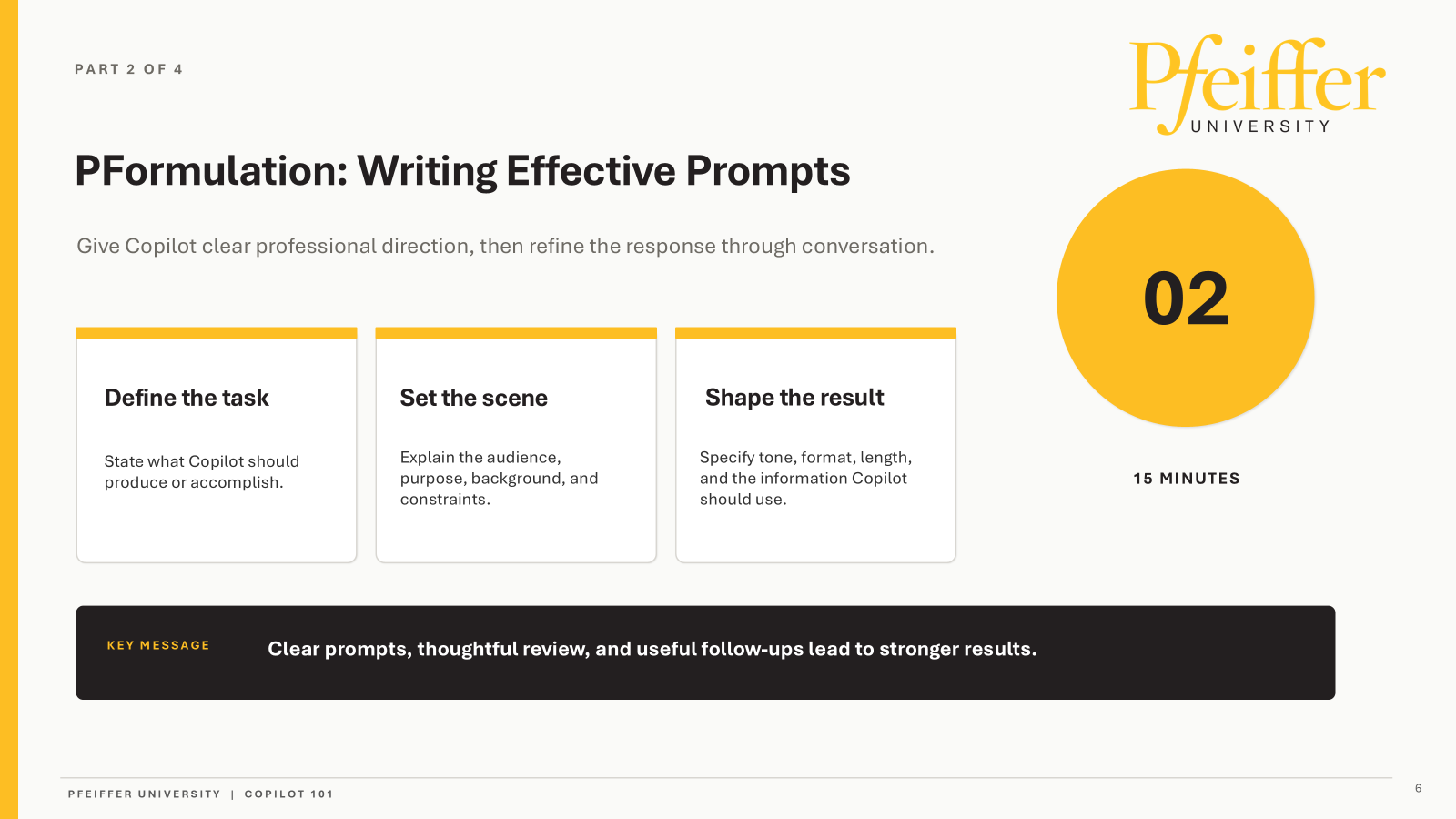
Prompt Structure: Effective prompts should define the task, establish the audience and purpose, and shape the result through tone, format, length, and constraints. Ryan summarized the approach as goal, context, expectations, and sources.
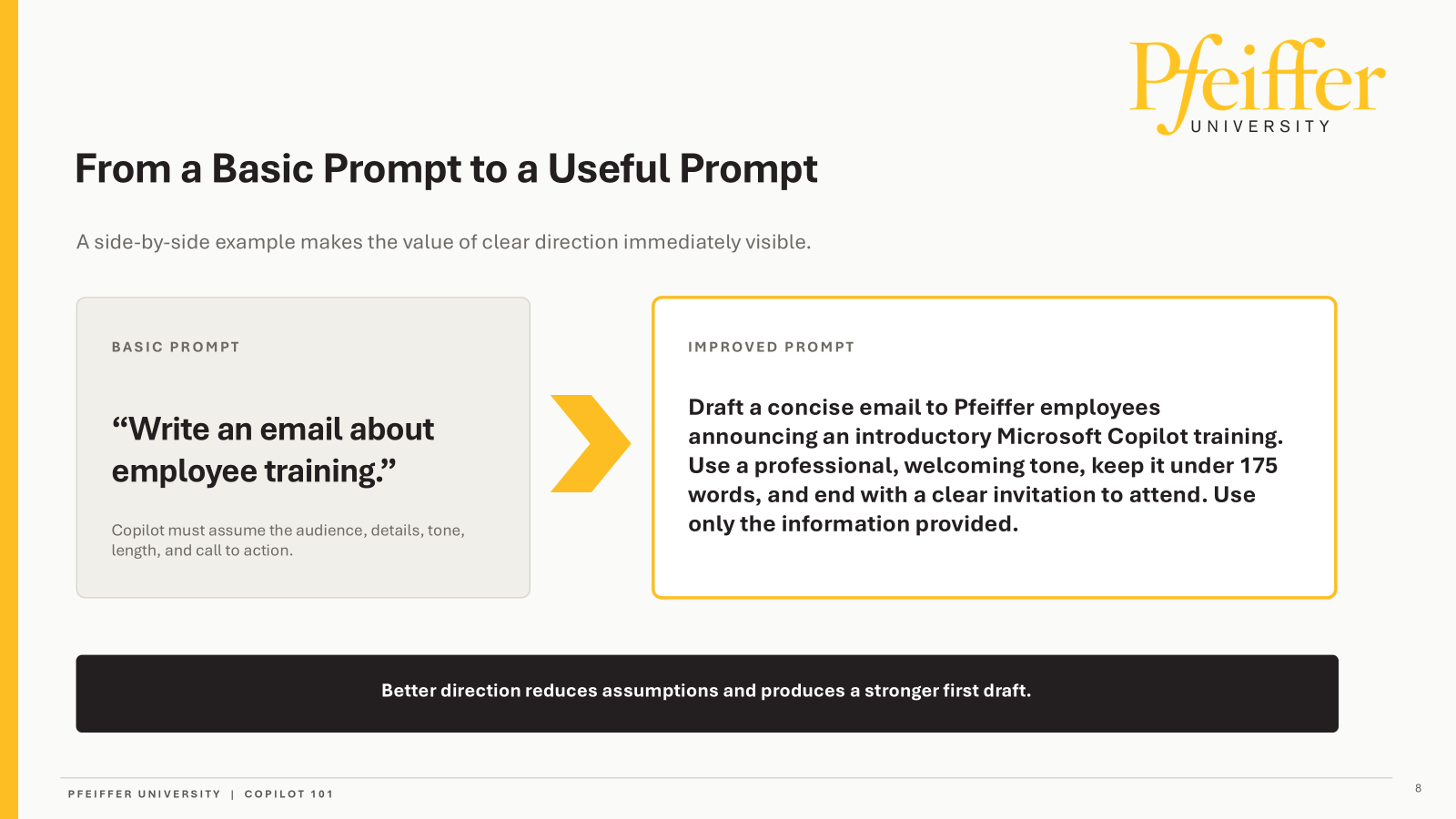
Prompt Specificity: Ryan contrasted a vague request to write an employee-training email with a prompt requesting a concise, professional, and welcoming email to Pfeiffer employees. The improved prompt included a 175-word limit, a clear invitation, and instructions to use only the supplied information. More direction reduces the assumptions Copilot must make.
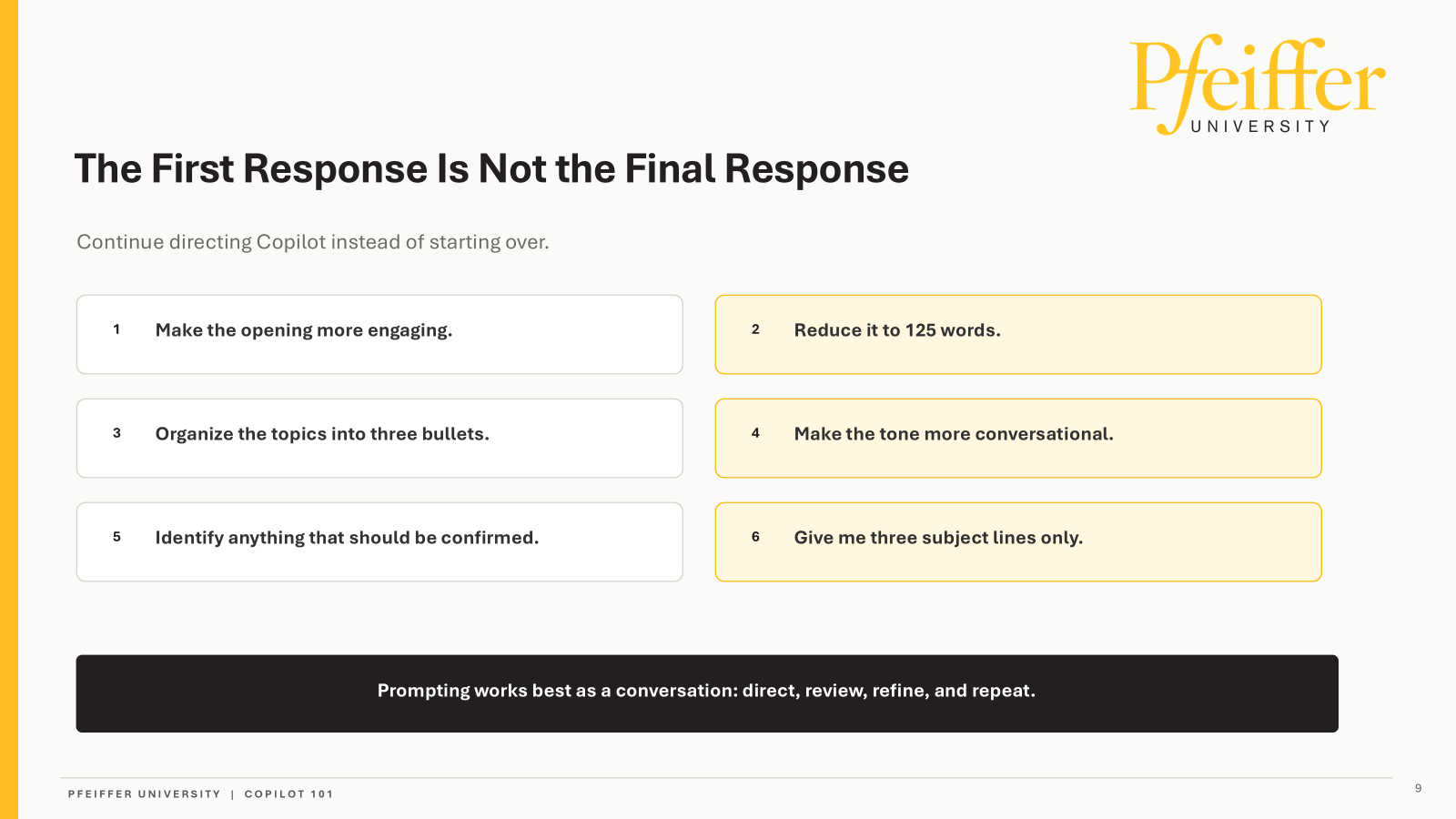
Iterative Refinement: The first response is not necessarily the final response. Users should review the result, identify weaknesses, and ask Copilot to revise the tone, length, organization, subject line, or items requiring confirmation rather than beginning again with a new prompt.
Personalization and Temporary Chats: Copilot may use prior conversations and accessible work context to personalize its responses. Employees can manage their chat history or use a temporary chat when testing a hypothetical role or scenario that they do not want used for future personalization.
Copilot Modes and Work Context
Ryan explained the practical differences among the available conversation modes, along with the distinctions between Basic and Premium access and optional work-context features.
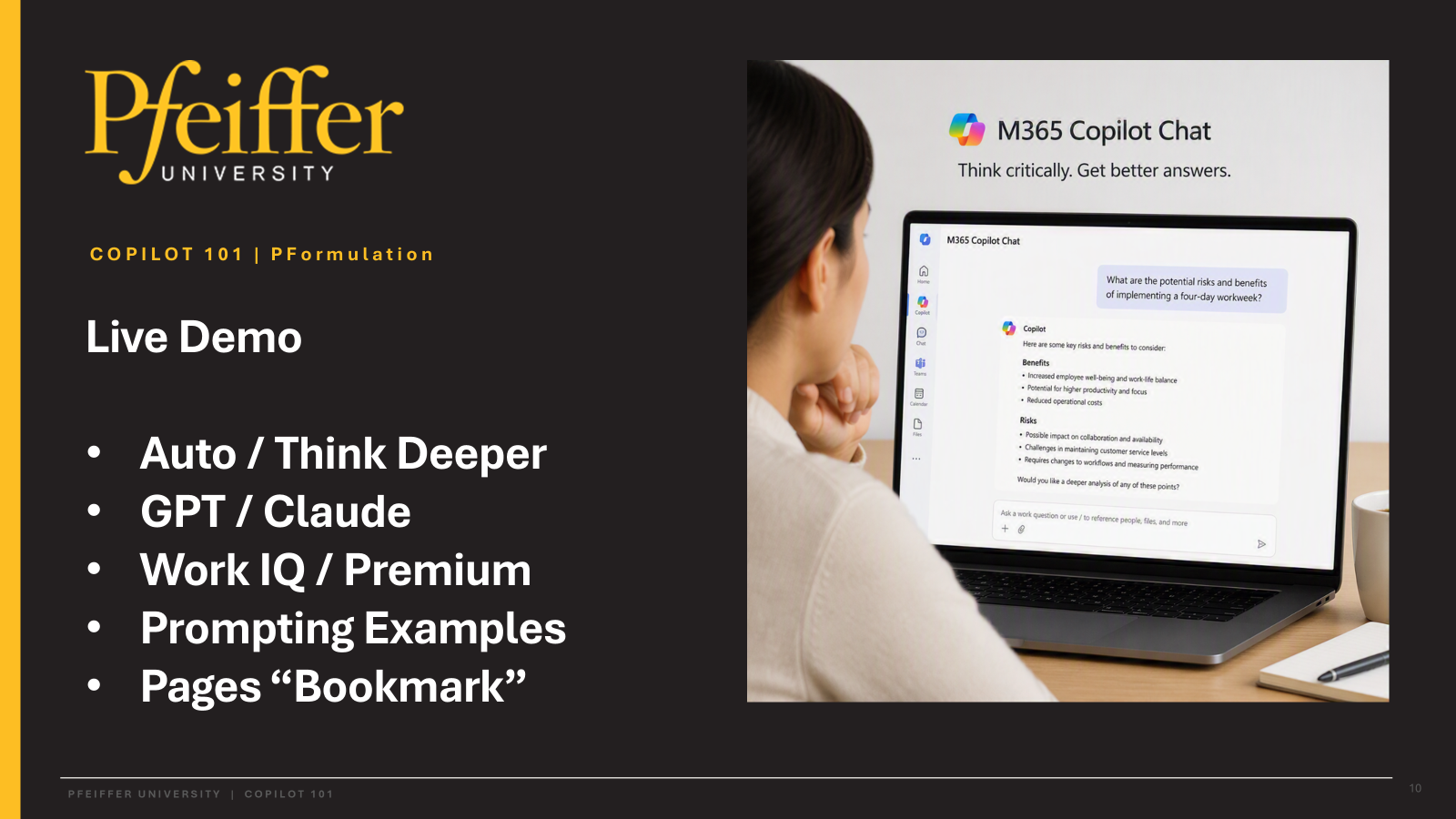
Conversation Modes: Auto is intended for most everyday questions and selects an appropriate level of reasoning. Quick Response prioritizes speed, while Think Deeper spends additional time reasoning and may be more appropriate for complex analysis, comparisons, planning, security reviews, or decisions involving meaningful tradeoffs.
Basic and Premium: Copilot Chat Basic is broadly available to eligible Pfeiffer users and provides general AI chat capabilities. Premium licensing provides additional features and greater integration with accessible Microsoft 365 work content. Available models and features may vary based on licensing and Microsoft product updates.
Work Context: Premium users may have options that allow Copilot to use accessible work data from Microsoft 365 sources such as email, OneDrive, Teams, and SharePoint. Users should confirm whether work context is enabled when they want a response based only on public information.
Output Management: Depending on the available features, users may be able to copy responses, export content to Word, read responses aloud, or save content in Pages for later editing. Pages may also be shared with other authorized Pfeiffer users for review and collaboration.
Copilot Functionality and Institutional Tools
Ryan reviewed Copilot’s administrative, creative, educational, and agent-based capabilities while discussing access limitations, file-location requirements, and approval expectations.
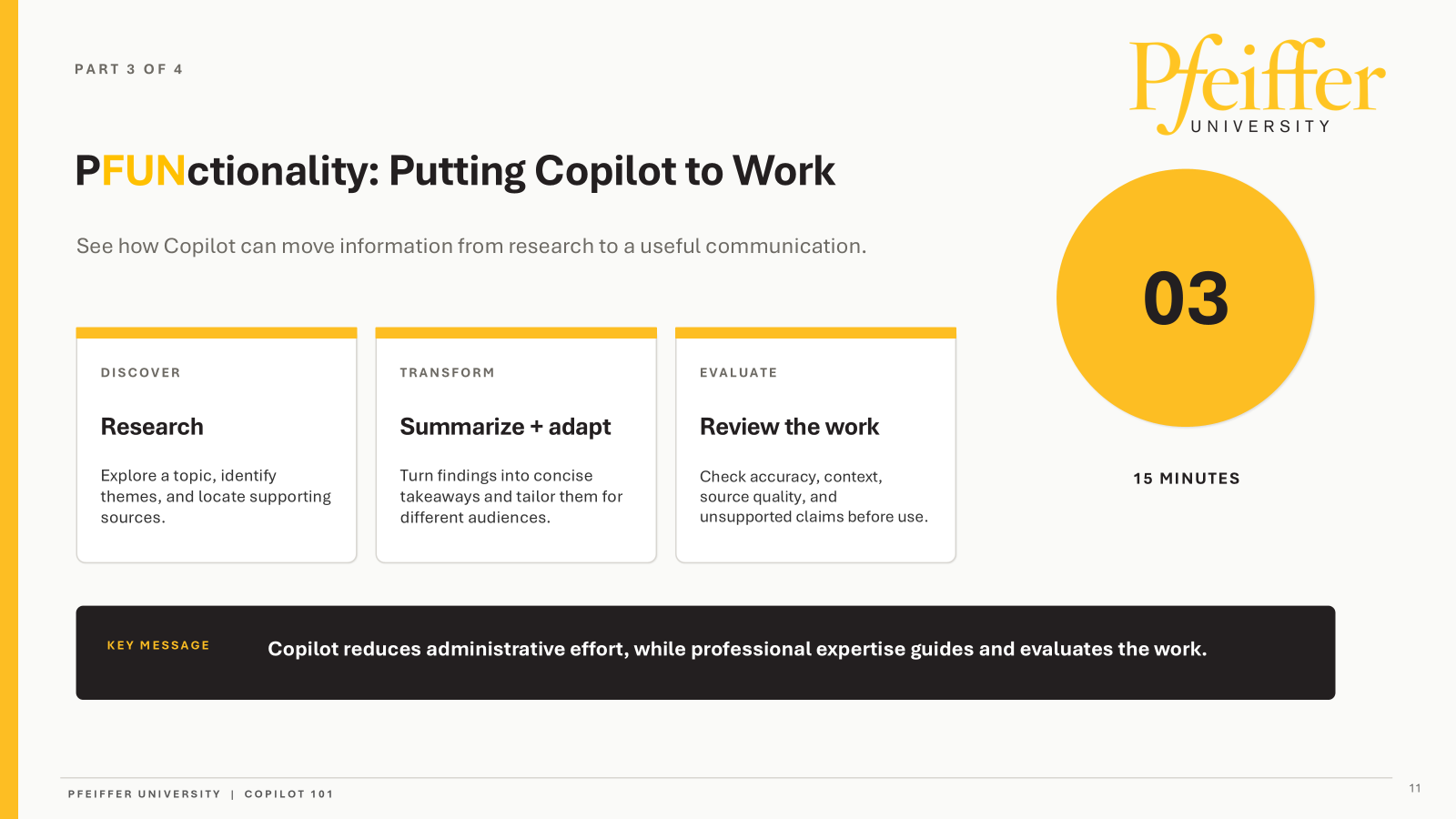
Administrative Assistance: Copilot can support research, summarization, drafting, brainstorming, planning, and long-document review. Ryan described using it as a concept checker to identify missing ideas or overlooked content rather than using it only for spelling and grammar corrections.
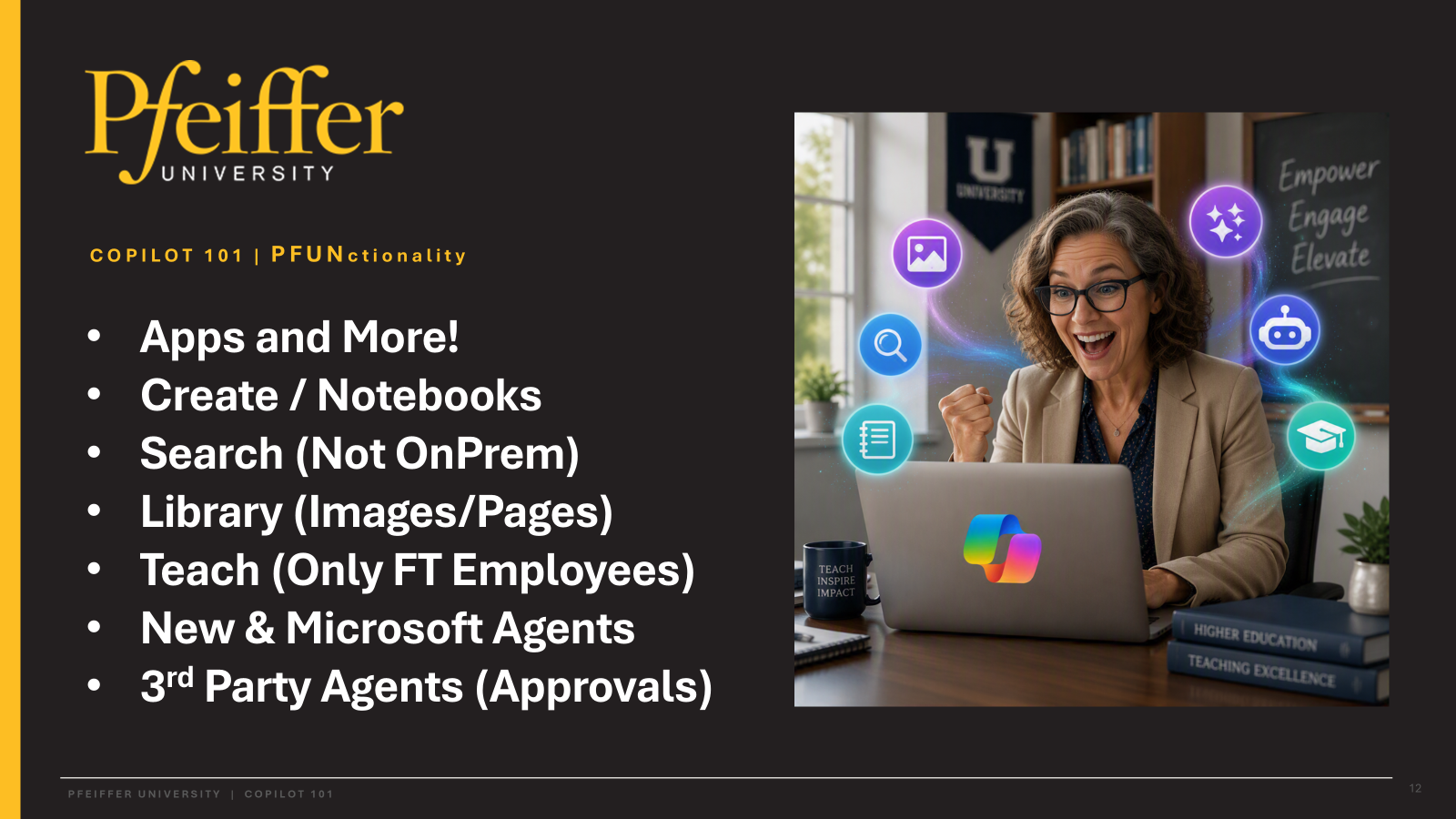
Create and Library: Depending on licensing and availability, the Create area can assist with images, videos, infographics, documents, presentations, storyboards, posters, and other content. The Library allows users to revisit supported content they previously created or saved.
Brand Review: AI-generated images and public-facing materials should be reviewed for quality, resolution, official Pfeiffer branding, and correct logos. Public materials using Pfeiffer branding should be routed through Marketing for review before publication because AI-generated graphics may not scale properly or align with university brand standards.
Search and File Locations: Copilot can search supported chat history, Pages, and accessible Microsoft 365 content based on the user’s permissions and license. Premium features may access files in OneDrive, Teams, and SharePoint but may not reach files stored on local computers or legacy shared drives. Appropriate files may need to be moved to approved Microsoft 365 locations, subject to information-protection and data-sensitivity requirements.
Teach and Study Tools: Teach provides tools that may help differentiate instruction, adjust the complexity of text, add examples, align content with standards, and create learning activities. Availability depends on licensing and account type. Study and Learn provides activities such as flashcards, quizzes, matching exercises, fill-in-the-blank exercises, and study guides for eligible users.
Notebooks for Grounded Analysis
Ryan demonstrated Copilot Notebooks as a way to analyze a defined collection of files and focus the working context on references supplied by the user.
Notebook Creation: Users can create a notebook and add supported files such as PDF, Word, PowerPoint, and Excel documents, along with other available references. Ryan demonstrated the process using fictional files in a demonstration notebook.
Grounded Responses: Copilot Notebooks grounds responses in the files and references added by the user, helping focus the analysis on a defined set of materials. This narrower context can reduce unsupported additions and help users trace responses to source material.
Analysis Features: After processing references, a notebook may be able to summarize material, identify common themes, answer questions, produce a mind map, create a study guide, draft an executive summary, and identify the source material used. Users still need to review and challenge the results.
Export and Reuse: Depending on the available features, notebook outputs may be read aloud, copied into an email, exported to Word, bookmarked, or reused as source material for another request. Generated presentations and other materials still require human review for accuracy, layout, and Pfeiffer branding.
Agents and Third-Party Integrations
Ryan introduced built-in agents and explained that custom and third-party agents require IT review because connections to institutional information may create security, governance, licensing, and cost considerations.
Built-In Agents: Employees may experiment with approved Microsoft-provided agents available within Pfeiffer’s environment. These tools can support writing, prompting, planning, learning, and productivity activities. Availability may vary based on licensing and Microsoft product updates.
Custom Agent Controls: Employees should not independently create custom agents that connect to institutional content until Pfeiffer establishes the appropriate review and approval process. IT and the relevant department must coordinate on agent design, information access, licensing, governance, and controls.
Third-Party Review: Third-party applications or agents available through Copilot should be submitted to IT for evaluation before institutional use. IT must assess what the application does, what information it can access, how it handles data, and whether the proposed use is secure and appropriate.
Training Follow-Up and Participation
Ryan closed by asking employees to use Copilot during the following month, participate in scheduled office hours, and express interest in leadership or power-user sessions.
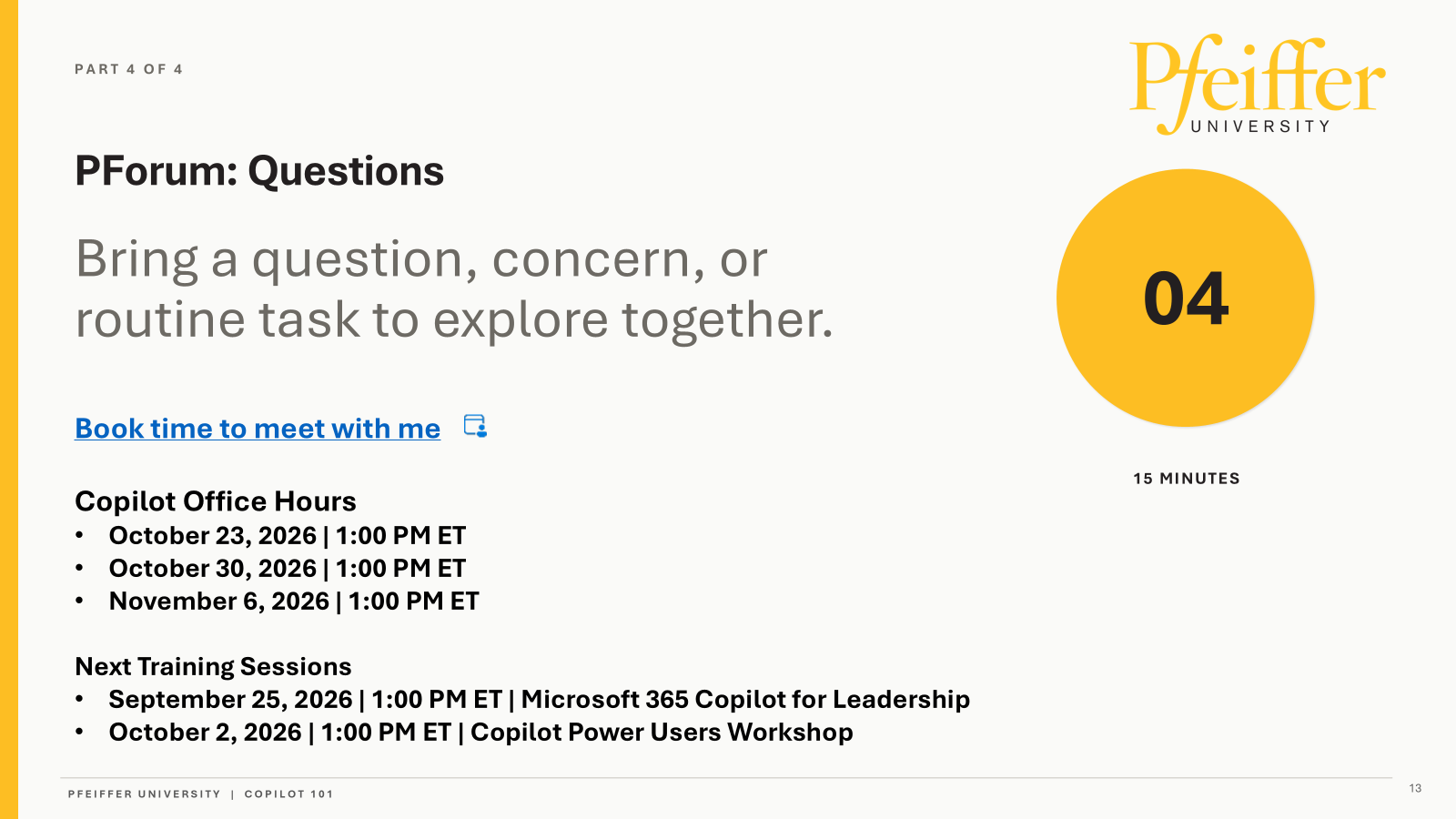
Office Hours: Copilot office hours were scheduled for October 23, October 30, and November 6, 2026, at 1:00 p.m. Eastern. These sessions are intended for open discussion, practical examples, concerns, and sharing both successful and unsuccessful experiences.
Leadership Session: The September 25, 2026, session at 1:00 p.m. Eastern will focus on Microsoft 365 Copilot for leadership and is primarily intended for users with Premium licenses. Interested employees may contact Ryan Conte to request an invitation.
Power User Workshop: The October 2, 2026, Copilot Power Users Workshop will focus on agentic AI and the potential use of agents to reduce administrative burdens. Employees with technical or data knowledge who are interested in participating may contact Ryan Conte.
Practice Period: Employees were encouraged to spend the month using Copilot, identifying helpful and unsuitable capabilities, and bringing their observations to office hours.
Follow-Up Tasks
Copilot Practice: Use Pfeiffer’s protected Copilot tools during the next month and document useful or problematic experiences to share during office hours.
Responsible group: Meeting participantsOffice Hours: Attend the scheduled Copilot office hours and share relevant use cases, feedback, concerns, or demonstrations.
Responsible group: Meeting participantsLeadership Training: Contact Ryan Conte to request an invitation to the September 25 leadership session if interested.
Responsible group: Interested participantsAgentic AI Workshop: Contact Ryan Conte to request inclusion in the October 2 power-user workshop on agentic AI and administrative use cases.
Responsible group: Interested participantsThird-Party Integrations: Submit an IT ticket for any proposed third-party Copilot application or agent so IT can evaluate its security, data handling, licensing, and institutional suitability.
Responsible group: Meeting participantsAI-Generated Branding: Route publicly distributed AI-generated materials that use Pfeiffer branding or logos through Marketing for review and approval.
Responsible group: Meeting participants and Marketing
